
How To Program A Husqvarna Automower: Easy Setup Guide
Introduction
To program a Husqvarna Automower in the United States, first install the boundary system and charging station, then set the date, time, mowing schedule, cutting height, and operating settings through the mower’s keypad or the Automower Connect app. Exact menu names vary by model, so use the owner’s manual for model-specific limits and features.
Most Husqvarna Automower models work best with frequent, short mowing sessions. Instead of cutting the lawn down in one long session, the mower trims small amounts as it moves across the yard. A good program also keeps the mower in the charging station during times when children, pets, sprinklers, or outdoor activities may be present.

What You Need Before Programming
Programming should begin only after the mower can safely move around the lawn and return to its charging station.
Check these items first:
- The charging station is placed on a level surface.
- The boundary wire or virtual boundary is installed and active.
- The guide wire, if used, leads the mower back to the station.
- The mower can leave and enter the charging station.
- The battery is charged.
- The cutting height is set for the current grass length.
- The correct PIN is available.
- The mower’s date and time are correct.
- The Automower Connect app is installed if your model supports it.
Boundary wire and virtual boundary setup
Traditional Automower models use a physical boundary wire. The wire tells the mower where it may travel. Some newer models use satellite-based virtual boundaries through Husqvarna EPOS technology. These systems do not use the same programming steps as wire-based installations.
A mower with a physical boundary wire may stop, turn, or return to the station when it reaches the wire. A mower with a virtual boundary uses the digital work area and no-go areas created in the app.
Do not assume that a setting from a wire-based model applies to an EPOS model. Confirm the mower type before changing navigation, boundary, or area settings.
Charging station placement
The charging station needs a clear approach. The mower must be able to find the station and make contact with the charging contacts. Grass, mulch, stones, leaves, or other objects should not block the path.
A poor station location can look like a programming problem. If the mower often fails to dock, check the station, guide path, and surrounding ground before changing the schedule.
Choose the right cutting height
If the grass is tall, begin with a higher cutting height. Lower the height in stages after the Automower has reduced the grass.
Cutting too much grass at once can cause:
- Poor mowing results
- Clumps of grass
- More battery use
- Greater stress on the mower
- Blocked cutting parts
Follow the cutting-height range listed for your model. The lowest safe setting depends on the mower, grass type, season, and lawn condition.
How to Program a Husqvarna Automower With the Keypad
Older and entry-level Husqvarna Automower models may use a control panel, keypad, and display. The exact menu structure differs, but the basic process is similar.
1. Turn on the mower
Open the control panel or display cover, if your model has one. Press the power button and enter the PIN when prompted.
Keep the mower on level ground while you program it. If the mower is in an alarm state, clear the cause before changing the schedule.
2. Set the date and time
Open the Settings or Time and Date menu. Set:
- Current date
- Current time
- Time format, if available
- Daylight saving time settings, if the model includes them
The mower uses its clock to decide when it may leave the charging station. A wrong clock can make a correct schedule appear to fail.
After setting the time, confirm that the displayed day matches the actual day. A schedule assigned to Tuesday will not run on the expected day if the mower thinks it is Monday.
3. Open the schedule menu
Find Schedule, Timer, or a similar menu. Select the days and times when the mower may operate.
Most models let you create one or more mowing periods for each day. Some models use a weekly grid. Others use start and stop times.
A schedule does not always mean the mower cuts grass for the entire period. The mower may leave the station, mow, return to charge, and leave again if time remains in the programmed window.
4. Set operating days
Choose the days when mowing is allowed. A common starting plan is to run the mower on most weekdays and reduce or stop operation during:
- Heavy rain
- Lawn treatment
- Yard work
- Events
- Times when people or pets use the lawn
- Local quiet hours
The mower may still spend part of the scheduled period charging. That is normal. The schedule controls when the mower may work, not continuous blade operation.
5. Set the mowing times
Choose a time window that fits the lawn and your household.
For example, a homeowner might allow mowing from 9:00 a.m. to 3:00 p.m. on weekdays. Another home may use an early evening window if the lawn is dry and the mower is not near outdoor activity.
Avoid programming the mower during times when:
- Children may play on the lawn
- Pets may be outside without supervision
- Irrigation is running
- The grass is commonly wet
- People may walk through the work area
- Local rules restrict outdoor equipment noise
6. Save the schedule
Confirm or save the new schedule. Then place the mower in the charging station and wait for the next scheduled period.
Some models show a clock, active schedule, or operating status on the display. Check that the schedule is enabled rather than saved but turned off.
7. Run a supervised test
During the first scheduled period, watch the mower for part of its cycle. Confirm that it:
- Leaves the charging station.
- Travels into the intended work area.
- Avoids the boundary.
- Cuts at the expected height.
- Returns to the charging station.
- Connects to the charging contacts.
A supervised test helps you find setup issues before they become repeated alarms.
How to Program a Husqvarna Automower With Automower Connect
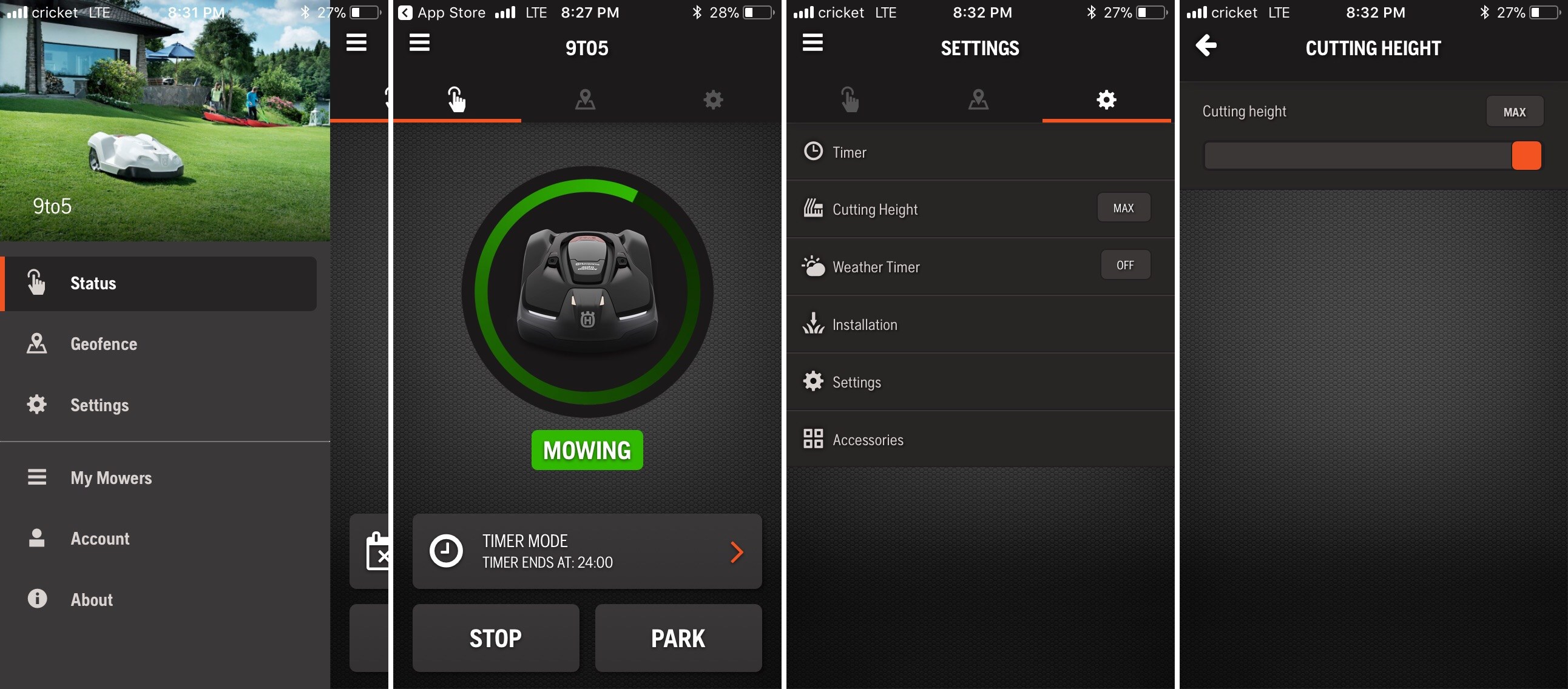
Many compatible Husqvarna models can be controlled through the Automower Connect app. The app may use Bluetooth, cellular communication, Wi-Fi, or another connection method, depending on the model and regional version.
1. Install the official app
Download Automower Connect from the Apple App Store or Google Play. Use the official Husqvarna app, not an unrelated third-party control app.
Create or sign in to a Husqvarna account if the app requires one. Keep your mower PIN available. The app may also ask you to pair the mower by Bluetooth or scan a product code.
Connectivity features, remote control options, and service requirements vary by model and region. Check the product manual and current Husqvarna support information for your mower.
2. Pair the mower
Turn on the mower and place it near your phone if Bluetooth pairing is required. Follow the instructions in the app.
If the mower has a cellular connection, pairing may also require time for the mower to connect to the mobile network. A weak signal can delay status updates or remote commands.
A successful connection usually lets you view some combination of:
- Battery status
- Charging status
- Current operating mode
- Schedule
- Error messages
- Mowing history
- Location or map data, when supported
- Start, stop, or park commands
The available controls depend on the Automower model.
3. Set the mower clock
Use the app to confirm the mower’s time and date. Some connected models update time automatically. Do not assume that every model does this.
If the mower runs at the wrong time, check both the phone’s time zone and the mower’s time zone. A schedule can shift if the device is assigned to the wrong region.
4. Create a weekly schedule
Open the schedule or timer section. Select the days and times when the mower may operate.
Use a broad enough window for the mower to charge and complete its work. A short window may cause the mower to spend most of the period charging instead of mowing.
For a new lawn program, start with a simple schedule. Add more time only if the grass remains too long. This makes it easier to identify whether the problem comes from the schedule, lawn size, weather, or mower setup.
5. Set work areas or zones when available
Some Automower models can manage more than one work area. The app may let you assign a percentage of mowing time to different areas or create separate schedules.
Use area settings when the lawn has:
- A narrow side yard
- A front and back lawn
- Separate sections connected by a narrow passage
- A section that needs more mowing than another
A work-area setting does not replace correct boundary installation. The mower still needs a safe path and a properly defined mowing area.
6. Add temporary commands carefully
The app may offer commands such as:
- Start
- Park
- Park until a selected time
- Park for a selected number of hours
- Resume schedule
- Mow now
A temporary park command can override the normal schedule. After using one, check that the mower has returned to its regular program.
7. Confirm the first remote cycle
Use the app to check whether the mower leaves the station at the scheduled time. If the app shows that the mower is active but it does not move, inspect the mower in person.
Remote status can be delayed. The app is useful, but it should not replace a physical check when the mower reports an alarm or unexpected behavior.

How Long Should a Husqvarna Automower Run?
The correct schedule depends on lawn size, grass growth, mower capacity, weather, and cutting height. A larger lawn or faster-growing grass needs more available mowing time.
A practical way to estimate the schedule is:
Required daily mowing time ≈ lawn area ÷ mower mowing capacity
Use the capacity and recommended lawn size listed for your exact model. Do not treat the maximum stated area as a promise of equal results in every yard. Slopes, narrow passages, complex borders, wet grass, and frequent charging can reduce practical coverage.
Example schedule calculation
This is a hypothetical example.
Suppose a mower is rated for a lawn of 0.25 acre under the manufacturer’s stated conditions. Your usable lawn is about 0.15 acre, but it includes several narrow sections and a slope. You may need a longer daily operating window than a simple area ratio suggests.
Start with a moderate schedule, such as several hours per day. Check the grass after one week:
- If the grass stays evenly trimmed, keep the schedule.
- If the grass is too long, add operating time or mowing days.
- If the mower runs nearly all day and still falls behind, check boundary layout, battery health, cutting height, and model capacity.
- If the grass shows stress or scalping, reduce cutting demand and raise the cutting height.
The goal is not to make the mower run constantly. The goal is to keep the grass at a steady height while leaving time for charging and safe downtime.
Recommended Scheduling Practices for U.S. Lawns
A good schedule changes with the season. Warm-season and cool-season grasses grow at different times, and local rainfall can change mowing needs.
Spring
Grass may grow quickly after rain and warming temperatures. Use a higher cutting height if the lawn is recovering from winter. Avoid letting the mower remove too much growth in one cycle.
Summer
Heat and drought may slow growth. A shorter schedule may be enough. Avoid mowing when the soil is saturated or when the lawn is under severe drought stress.
Fall
Cool-season lawns may continue growing as temperatures drop. Remove leaves and large debris before the mower runs. The mower is not a leaf vacuum, and heavy leaf cover can interfere with mowing and charging.
Winter
In much of the United States, lawns may need little or no mowing during freezing weather. In areas with snow, ice, or frozen ground, park and store the mower according to the manual.
Do not use a schedule designed for a warm, growing season throughout the year without checking the lawn.

Weather Timer, Frost Guard, and Other Automatic Settings
Some Husqvarna Automower models include weather-related functions. A weather timer may reduce mowing when grass grows slowly and allow more mowing when growth increases.
These settings can be useful, but they do not replace judgment. A weather timer may not know about:
- A newly seeded lawn
- A lawn treatment
- A local irrigation schedule
- A family event
- A wet low spot
- A temporary pet or child safety concern
Some models also have frost protection or related settings. If your model supports these features, follow the manual’s instructions. Features vary by model and software version.
Common Programming Problems and Fixes
| Symptom | Likely cause | What to check |
|---|---|---|
| Mower does not start | Schedule is off or mower is parked | Check the active schedule and operating mode |
| Mower runs at the wrong time | Clock or time zone is wrong | Reset date, time, and time zone |
| Mower leaves but does not cover the whole lawn | Schedule is too short or area is too large | Compare lawn size with model capacity |
| Mower stops at the boundary | Boundary wire or virtual map issue | Inspect the boundary and map settings |
| Mower cannot find the station | Guide path or station approach problem | Clear obstacles and check guide installation |
| App shows old information | Weak connection or delayed status | Move within Bluetooth range or check network service |
| Mower returns too often | Low battery, difficult terrain, or blocked cutting system | Check battery, slope, wheels, and blade area |
| Grass remains too long | Not enough mowing time or poor coverage | Increase time only after checking setup |
| Grass looks scalped | Cutting height is too low | Raise the deck and lower it gradually |
| Mower creates repeated tracks | Normal route pattern or navigation setting | Change mowing pattern or check guide and map settings |
When the mower will not leave the station
Check these items in order:
- Confirm that the schedule is active.
- Check whether the mower is set to Park or Park until further notice.
- Look for a displayed alarm.
- Confirm the time and day.
- Make sure the battery is charging.
- Check that the charging contacts are clean.
- Inspect the station for an obstruction.
- Review app connectivity if using Automower Connect.
If the mower still does not start, record the error message before resetting it. A service technician can use that information.
When the mower frequently loses the boundary
For wire-based systems, inspect visible sections of boundary wire for cuts or loose connections. Recent digging, edging, landscaping, or aeration can damage the wire.
For virtual-boundary models, check the map, satellite connection, and no-go areas. A virtual boundary problem may require a clear view of the sky or a change to the mapped work area, depending on the system.
Do not alter boundary wiring or electrical parts unless the owner’s manual permits the work and you can do it safely.
When the mower gets stuck
Look for a repeat location. Common causes include:
- Deep ruts
- Loose soil
- Low branches
- Exposed roots
- Mulch edges
- Narrow passages
- Steep slopes
- Wet ground
- Gaps beside the boundary
Fix the lawn or boundary problem first. Repeatedly restarting the mower without correcting the location usually does not solve the cause.
Safety Rules Before and During Operation
Automower blades can cause serious injury. Turn the mower off and follow the manual’s safety steps before lifting it, cleaning it, or working near the blades.
Keep children and pets away during setup and when inspecting the mower. Never place hands or feet under the mower while it is powered on.
Before the mower runs, remove objects such as:
- Toys
- Garden tools
- Hoses
- Sticks
- Wire
- Small stones
- Pet waste
- Loose decorations
Use caution on slopes. Each model has specific slope limits, and the safe limit can change near the boundary or on wet grass. Check the manual for your model rather than relying on a general slope rule.
If the mower has a theft alarm or geofence feature, set it after the mower works correctly. Security settings cannot correct a boundary, schedule, or charging problem.
How to Know the Program Is Working
A successful program has more signs than simply seeing the mower move.
After one or two operating cycles, check that:
- The mower leaves at the planned time.
- The mower covers all intended areas.
- The mower returns to charge.
- No repeated alarm appears.
- Grass height stays fairly even.
- The mower does not remain stuck in one area.
- The lawn is not scalped or torn.
- The battery and charging behavior seem normal.
- The mower stays away from no-go areas and hazards.
Walk the lawn after the first week. Look at edges, narrow passages, slopes, and areas near landscaping. These locations often reveal setup problems sooner than open lawn.
Frequently Asked Questions
Can I program a Husqvarna Automower without the app?
Yes. Many models can be programmed through the mower’s built-in control panel. Connected models may offer more features through Automower Connect, but the basic schedule may still be available from the mower itself. Check the manual for your model.
How often should a Husqvarna Automower mow?
Many lawns need frequent mowing during active growth, but the correct schedule depends on lawn size, grass type, climate, and mower capacity. Start with a moderate schedule and adjust after checking the grass. Frequent light cuts are usually better than occasional long sessions.
Why does my Automower stay in the charging station?
The mower may be outside its scheduled time, parked by a temporary command, fully charged but waiting, unable to connect to the charging contacts, or showing an alarm. Check the operating mode, schedule, clock, battery, and display message.
Can Automower run in the rain?
The answer depends on the model and the conditions. Many Automower models are designed for outdoor use, but wet grass can reduce traction and mowing quality. Heavy rain, standing water, storms, and saturated soil can create problems. Follow the operating limits in the owner’s manual.
How do I stop Automower from mowing at night?
Remove nighttime hours from the schedule, or use a park command in the app if your model supports it. A daytime schedule may also be better for visibility, pets, wildlife, and household safety.
Key Takeaways
- Set the mower’s date and time before creating a schedule.
- Use the keypad or Automower Connect app, depending on the model.
- Program a wide enough window for mowing and charging.
- Match the schedule to lawn size and mower capacity.
- Start with a higher cutting height when grass is tall.
- Test the first cycle while you are nearby.
- Check boundary, charging, and connectivity problems before changing the schedule.
- Keep children, pets, tools, and loose objects away from the mowing area.
- Use the exact owner’s manual for slope limits, weather settings, blade access, and model-specific menus.
Conclusion
Programming a Husqvarna Automower is mainly a matter of setting the clock, creating a safe weekly schedule, and confirming that the mower can cover the lawn and return to charge. The best settings are not the longest possible settings. They are the shortest reliable schedule that keeps the grass even without creating safety, traction, or lawn-health problems.
Start with a simple daytime program. Observe the mower for its first few cycles, then adjust the schedule, cutting height, or work areas based on what the lawn shows.


