
How To Factory Reset A Husqvarna Automower: Easy Guide
A factory reset on a Husqvarna Automower® removes saved user settings and returns the mower to its default setup. On many U.S. models, the path is Menu → Settings → General → Reset → Reset all user settings. The exact wording and menu path can vary by model, firmware, and display type, so check the model’s Husqvarna manual before confirming the reset.
Introduction
If your Husqvarna Automower is locked, using the wrong schedule, showing setup errors, or being prepared for a new owner in the United States, a reset may solve the problem. A reset can also clear custom mowing times, guide settings, charging-station details, and other stored preferences.
A factory reset is not the same as turning the mower off and on. It removes stored settings. Before you continue, record your current schedule, cutting height, installation settings, and app connection details. You may need to set them up again.
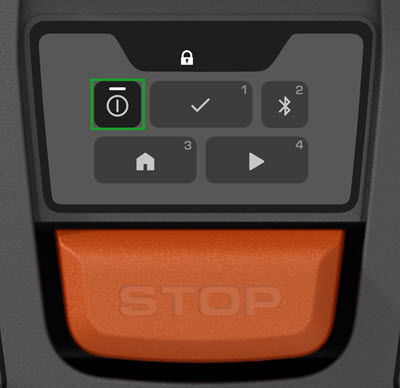
What a Factory Reset Does
A factory reset returns the mower’s user-configured settings to their default values. It does not normally repair broken hardware, damaged boundary wire, a weak battery, or a faulty charging station.
Depending on the model, the reset may remove or change:
- Mowing schedules
- Cutting height settings
- Weather timer settings
- Corridor width
- Frost protection settings
- Spiral mowing settings
- Secondary-area settings
- GPS-assisted settings
- Wi-Fi or Bluetooth setup details
- Automower Connect pairing information
- Other personal preferences
The reset may not remove every item stored by the mower. For example, the security PIN, loop signal, or installation data may be treated differently on different models. Do not assume that a reset removes the PIN or unregisters the mower from an Automower Connect account.
Factory reset versus a normal restart
A normal restart only powers the mower off and on. It can help after a temporary software issue, but it does not erase saved settings.
A factory reset is more suitable when:
- You want to start the installation again.
- The mower has many incorrect settings.
- You are giving the mower to another person.
- The mower was connected to the wrong app account.
- A software problem continues after a restart.
- You cannot identify which setting is causing the problem.
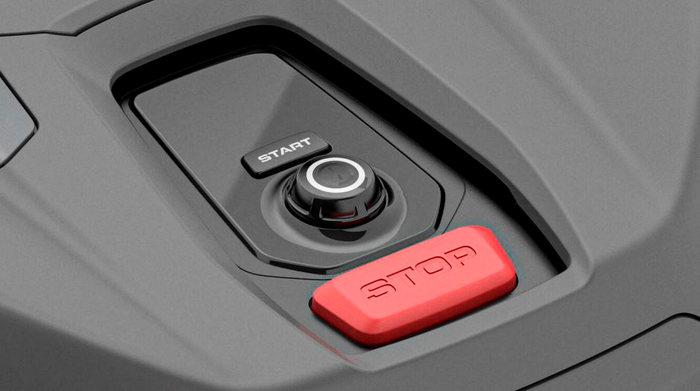
Before You Reset Your Husqvarna Automower
Prepare the mower before opening the reset menu. This reduces the chance of losing useful information or creating a second setup problem.
1. Find the exact model
Look for the model name on the mower, under the top cover, near the control panel, or on the product label. Common U.S. models include lines such as:
- Automower 115H
- Automower 305
- Automower 310
- Automower 315
- Automower 415X
- Automower 435X AWD
- Automower 450XH
- Automower Aspire® R4
- Automower® NERA models
The menu can differ between a small keypad model, an X-line model, a NERA model, and a mower controlled mainly through the Automower Connect app.
2. Record important settings
Take photos of the following screens or write the values down:
- Mowing schedule
- Start points
- Cutting height
- Corridor width
- Secondary areas
- Stay-out zones
- GPS-assisted mowing settings
- Charging-station location settings
- PIN and security settings, if permitted by the model
This step is especially useful if the mower was installed by a dealer.
3. Charge the mower
Place the mower in its charging station and allow it to charge. A reset should not be interrupted by a low battery. If the mower cannot charge, resolve that issue first or follow the model’s manual for a safe reset procedure.
4. Confirm that a reset is necessary
Try a normal restart first if the issue is minor:
- Stop the mower.
- Enter the PIN if required.
- Turn the main switch to 0.
- Wait several seconds.
- Turn the main switch back on.
- Start the mower again.
If the fault returns, a factory reset may be the next step. Do not reset the mower to fix a damaged boundary loop, blocked blade disc, worn blade, or charging-station power problem. A reset will not repair those faults.

How to Factory Reset a Husqvarna Automower
Use the mower’s control panel when possible. Keep the mower still while you confirm the reset.
Method 1: Newer Automower models with a display
Many newer Husqvarna Automower models use a menu path similar to this:
- Place the mower in the charging station.
- Turn the mower on.
- Enter the PIN if requested.
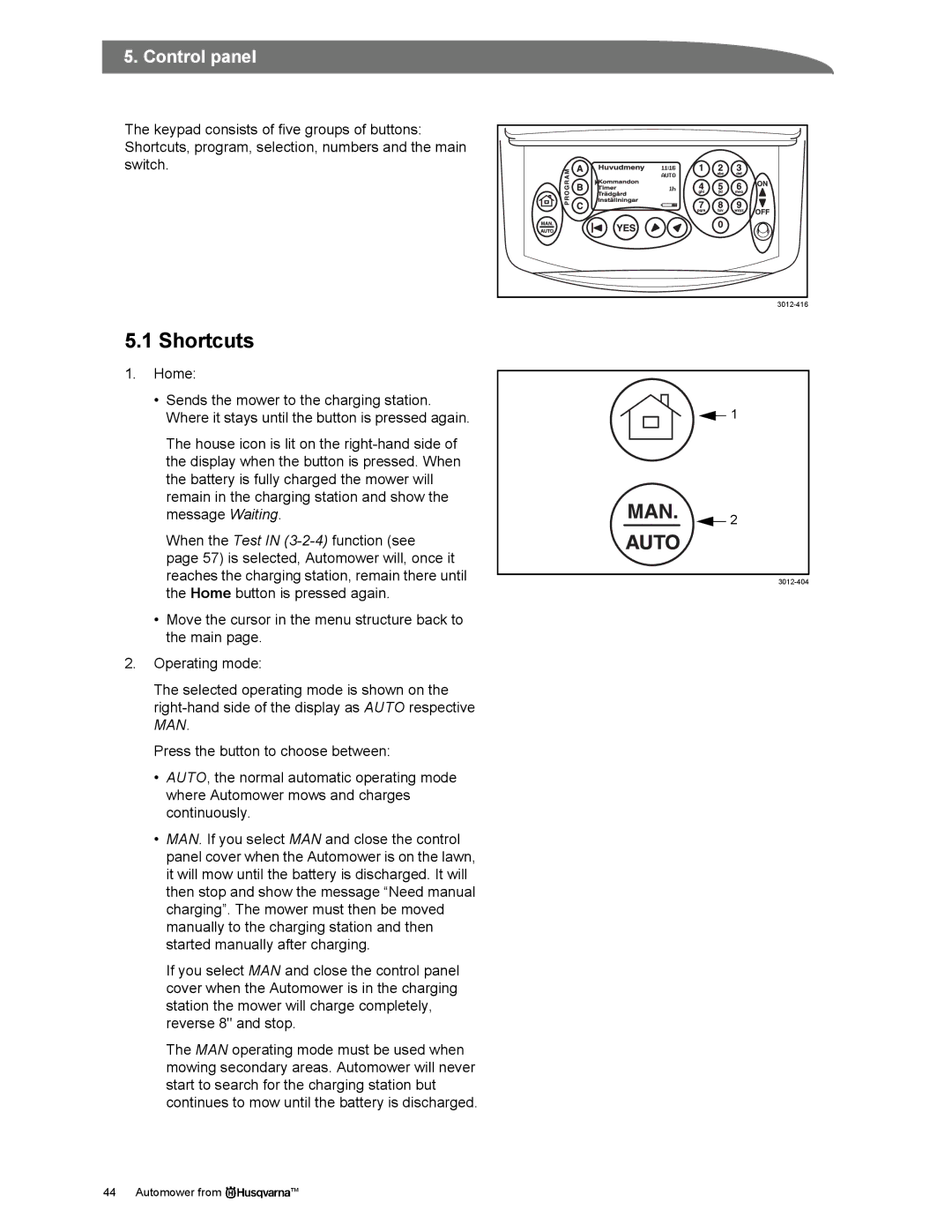
- Open Menu.
- Select Settings.
- Select General.
- Select Reset.
- Choose Reset all user settings.
- Read the warning on the screen.
- Confirm the reset.
- Wait for the mower to complete the process.
- Re-enter the basic settings after the mower restarts.
The wording may be Reset all user settings, Factory reset, or a similar term. Choose the option that clearly refers to all user settings. Do not select a setting that only resets one feature unless that is your goal.
Method 2: Automower models with a keypad
Some older models use a keypad and a different menu structure. A typical path may be:
- Stop the mower and enter the PIN.
- Press Menu.
- Open Settings, Tools, or Installation, depending on the model.
- Find Factory settings, Reset, or Reset all user settings.
- Confirm the choice.
- Wait until the mower returns to the main screen.
- Reconfigure the mower.
Older Automower manuals may use the term Factory settings instead of Reset all user settings. Use the manual for the exact model because menu names are not identical across Husqvarna product generations.
Method 3: Automower Connect app
Some models allow certain settings to be changed through the Automower Connect app. However, the app may not offer the same complete factory-reset command as the mower’s physical control panel.
If the app shows a reset option:
- Open Automower Connect.
- Select the correct mower.
- Open Settings.
- Look for General, Security, or Reset.
- Follow the on-screen instructions.
- Keep the phone near the mower if a Bluetooth connection is required.
If you cannot find a full reset in the app, use the mower’s control panel or consult the official manual. Deleting the app, removing the mower from Bluetooth, or uninstalling Automower Connect does not necessarily reset the mower itself.
4. Complete the setup again
After the reset, configure the mower in a logical order:
- Set the language.
- Set the date and time.
- Create or confirm the PIN.
- Set the working area.
- Enter the schedule.
- Set the cutting height.
- Configure corridors and start points.
- Add secondary areas or stay-out zones.
- Reconnect Automower Connect, if supported.
- Test the mower near the charging station.
Do not change many settings at once. Test the basic installation first. Then add advanced features one at a time.
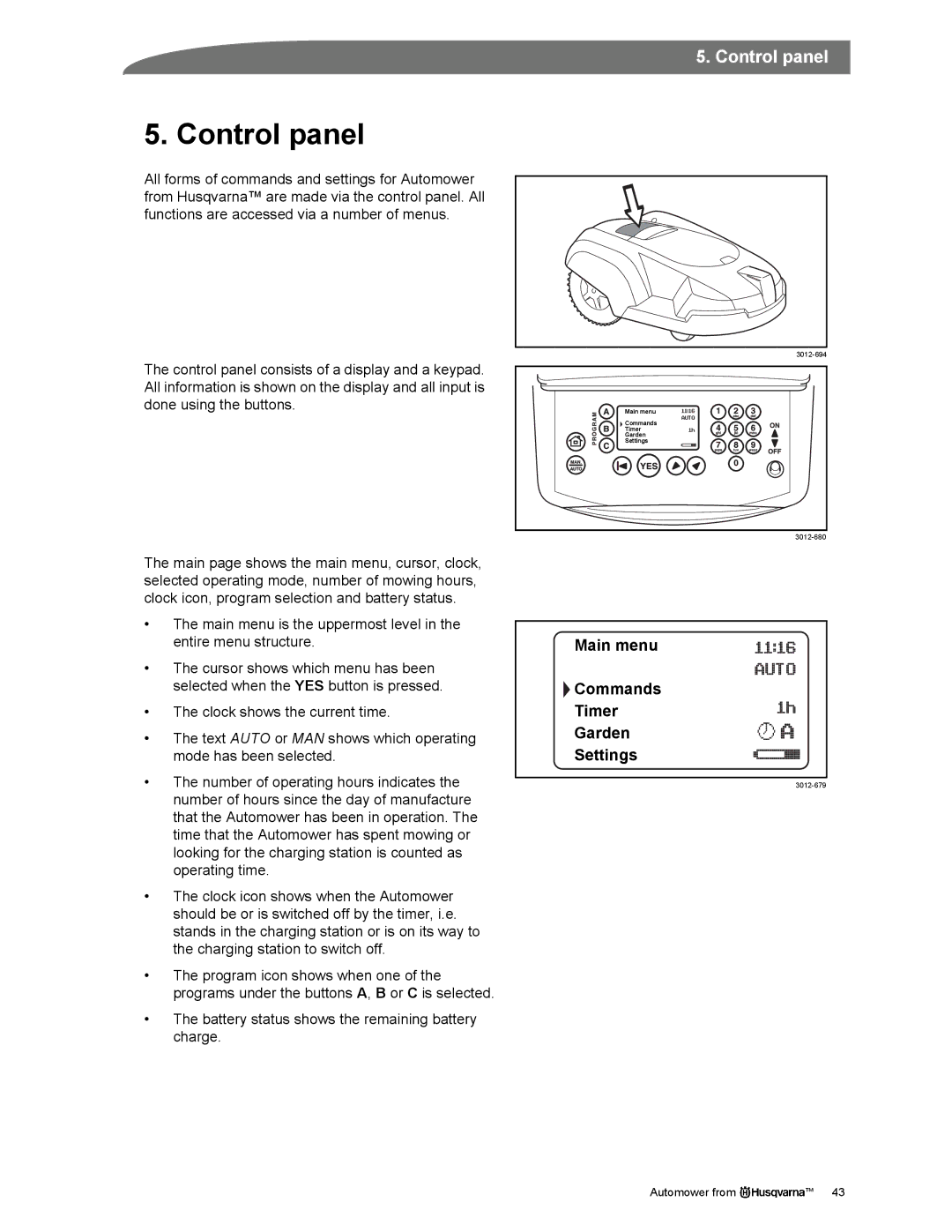
What to Do After the Reset
A successful reset usually produces a setup screen, default settings, or a request to enter basic mower information. The mower may also lose its saved schedule and remain in the charging station until you program a new one.
Check these items before starting automatic mowing:
- The mower recognizes the charging station.
- The boundary wire is connected.
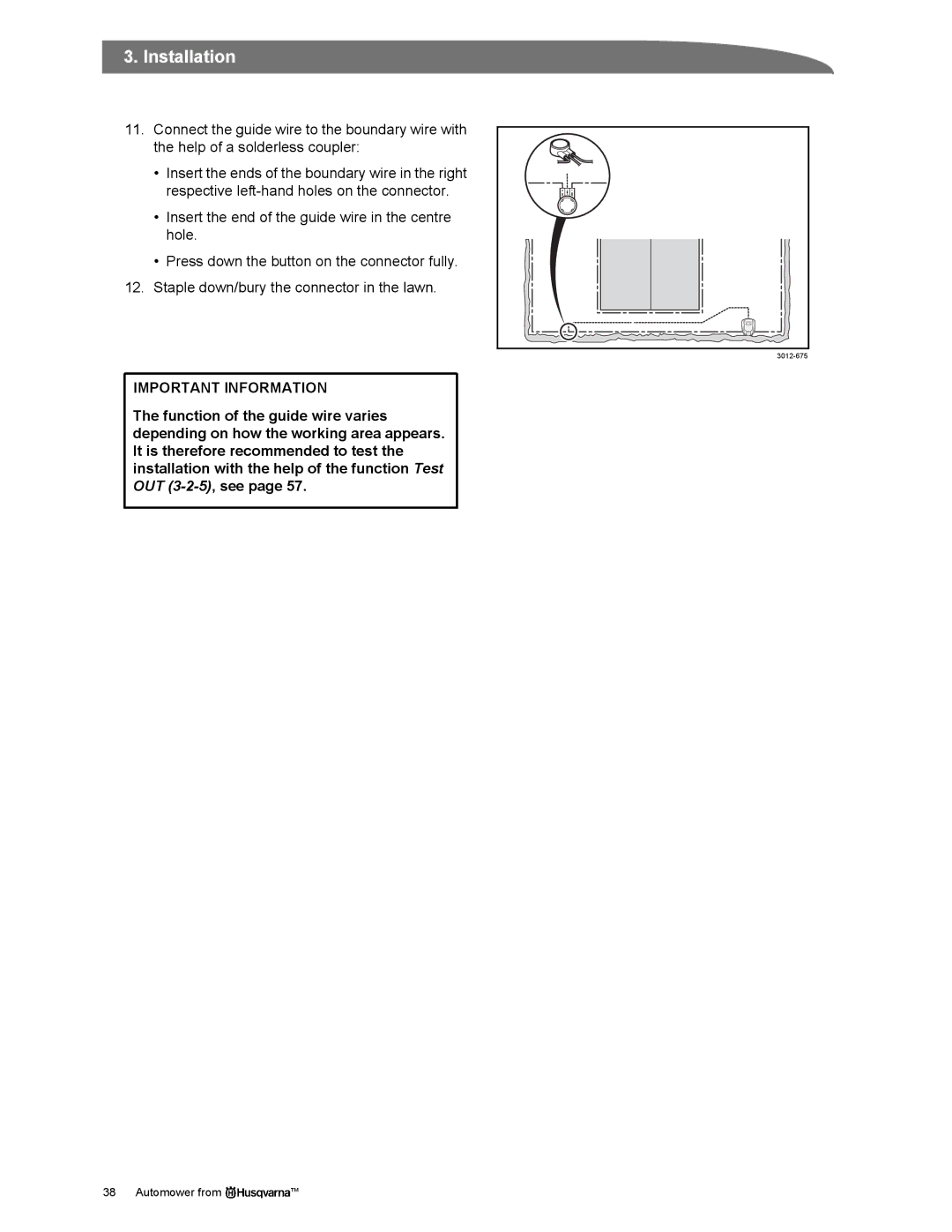
- The guide wire is connected, if your installation uses one.
- The mower has the correct date and time.
- The working area is correct.
- The cutting height is set correctly.
- The blades can turn freely.
- The mower has enough battery charge.
- Automower Connect shows the correct mower.
- The schedule does not send the mower out when people or pets are using the lawn.
Run a short supervised test. Watch the mower leave the station, travel along the expected route, mow, and return to charge. A reset can remove settings that previously helped the mower navigate narrow passages or difficult lawn areas.
If you are selling or transferring the mower
A factory reset alone may not complete a transfer. You may also need to:
- Remove the mower from your Automower Connect account.
- Disconnect or transfer cellular service, if applicable.
- Give the new owner the PIN or help them create a new one.
- Provide the charging-station and boundary-wire information.
- Explain the location of the boundary and guide wires.
- Transfer purchase documents and service records.
The exact account-transfer process can change. Use Husqvarna’s current Automower Connect instructions for the model and service plan.
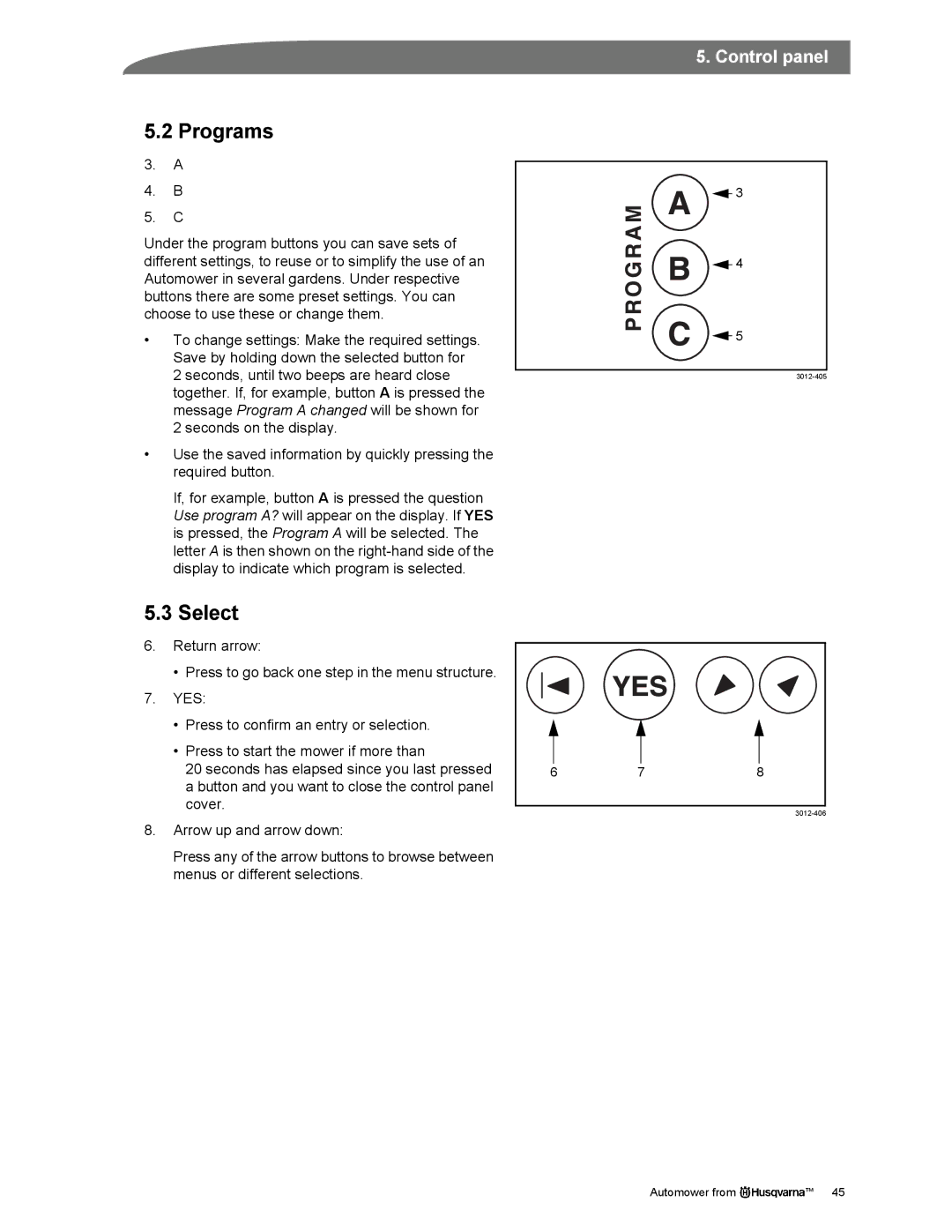
Factory Reset Troubleshooting
If the reset does not work, identify what failed. The symptom often points to the correct next step.
| Symptom | Likely cause | What to try |
|---|---|---|
| Reset option is missing | The model uses different menu names or does not support that path | Search the exact model manual for “factory settings” or “reset all user settings” |
| Mower asks for a PIN | The reset did not remove the security code | Use the correct PIN or contact an authorized Husqvarna service provider |
| App still shows the mower | The account connection is separate from mower settings | Remove or transfer the mower in Automower Connect |
| Schedule is still present | The wrong reset option was selected | Check whether the mower offers a full user-settings reset |
| Mower will not start | Low battery, active alarm, disabled schedule, or installation fault | Read the display message and inspect the charging station |
| Mower leaves but cannot find the station | Guide wire, boundary wire, or navigation setting problem | Inspect wire connections and restore the installation settings |
| Reset stops halfway | Low battery, software fault, or hardware issue | Charge the mower, restart it, and contact service if the problem continues |
| “No loop signal” remains | Boundary-loop, power-supply, or charging-station issue | Check the station power and wire connections; a reset will not repair the loop |
When you should contact Husqvarna support
Contact Husqvarna support or an authorized service dealer if:
- You do not know the PIN.
- The mower is locked after several incorrect attempts.
- The reset repeatedly fails.
- The mower shows a persistent internal fault.
- The battery will not charge.
- The charging station has no power.
- The mower has been damaged by water, impact, or electrical fault.
- The mower belongs to another person or account and ownership is unclear.
Do not bypass the PIN, open the battery, or alter the charging station’s electrical components. Those actions can create a safety risk and may affect warranty coverage.
Common Mistakes to Avoid
Resetting before recording the schedule
Many owners reset the mower and then discover that the working hours, start points, or stay-out zones are gone. Take photos first.
Confusing an app reset with a mower reset
Removing a mower from Automower Connect does not always erase settings saved on the mower. Treat account management and mower configuration as separate tasks.
Expecting a reset to fix boundary-wire faults
A factory reset changes software settings. It does not repair a cut wire, loose terminal, failed transformer, poor connection, or damaged charging station.
Choosing a partial reset by mistake
Some models offer several reset commands. Read the text carefully. A reset for one feature is not the same as resetting all user settings.
Starting automatic mowing without a test
A reset can restore default navigation behavior. Watch the first mowing cycle and confirm that the mower stays within the intended lawn area.
Key Takeaways
- The common reset path is Menu → Settings → General → Reset → Reset all user settings.
- Menu names vary by Husqvarna Automower model and software.
- Record your schedule and installation settings before resetting.
- A reset may erase schedules, navigation preferences, and app connections.
- It usually will not repair boundary-wire, battery, charging, or hardware faults.
- Removing the mower from Automower Connect may be necessary when transferring ownership.
- Use the exact model manual if the reset option is missing or the mower requests a PIN.
Frequently Asked Questions
Will a factory reset remove the Husqvarna Automower PIN?
Not always. Security settings can vary by model, and a factory reset should not be assumed to remove or reveal the PIN. If you do not know the PIN, use Husqvarna support or an authorized service dealer.
Does resetting an Automower delete the schedule?
A full reset of user settings commonly removes the mowing schedule. Record the schedule before resetting so you can enter it again.
Can I reset my Husqvarna Automower without the PIN?
Usually, you need the PIN to access protected settings. Do not try to bypass the security system. Contact Husqvarna or an authorized dealer if the PIN is unavailable.
Why does my Automower still appear in the app after a factory reset?
The app account and the mower’s stored settings are separate. The mower may need to be removed from the previous Automower Connect account or paired with a new account.
How long does a Husqvarna Automower factory reset take?
The reset itself is usually brief, but the time can vary by model. Keep the mower powered on and follow the screen prompts. If it freezes or repeatedly fails, charge it and contact service.
Should I factory reset an Automower before selling it?
Yes, a full reset can remove personal settings. Also remove the mower from your Automower Connect account and provide the buyer with the information needed to reinstall the boundary and guide wires.
Official Resources
Use the exact product manual for your model because Husqvarna changes menu names and procedures across product generations.
Conclusion
To factory reset a Husqvarna Automower in the United States, open the mower’s menu and look for Settings, General, and Reset all user settings. Older models may call the same function Factory settings. Save your schedule first, confirm the exact model instructions, and test the mower after setup.
If the mower still shows a fault after the reset, focus on the message, battery, charging station, boundary wire, and guide wire. A factory reset is a software-setting solution, not a repair for physical installation or hardware problems.


