
How To Update Firmware On A Husqvarna Automower: Easy Steps
For most Husqvarna Automower models sold in the United States, you update firmware through the Automower Connect app while the mower sits in its charging station. The exact steps depend on the model, software version, and connection type. Some mowers update over Wi-Fi or cellular service, while others need a Bluetooth connection or a Husqvarna dealer.
A firmware update can fix bugs, improve app support, and add functions. It does not change the mower’s cutting height, boundary wire, or mowing schedule by itself.
Before You Update Your Husqvarna Automower
Check these items before starting:
- The mower is in its charging station.
- The mower has enough battery charge.
- Your phone has the latest version of the Automower Connect app.
- Bluetooth, Wi-Fi, or cellular service is available, based on your Automower model.
- Your phone stays near the mower during a Bluetooth update.
- You know the mower’s PIN code.
- You have a stable internet connection.
- The mower is not scheduled to leave the charging station during the update.
Do not switch off the mower, unplug the charging station, or close the app while an update is in progress. A lost power or data connection can interrupt the process.
Find your Automower model
Look for the model name and product number on the mower, beneath the top cover, or in the Automower Connect app. Common US models include lines such as:
- Automower 115H
- Automower 415X
- Automower 435X AWD
- Automower 450XH
- Automower NERA models
The update method can differ between models. A connected X-series mower may receive firmware through its built-in communication system. A Bluetooth-only mower may require your phone to remain close to the mower.
Check the model-specific manual and support page on Husqvarna’s US website.
Firmware and app updates are different
A firmware update changes the software inside the Automower. It controls functions such as navigation, charging, sensors, and communication.
An app update changes Automower Connect on your phone. You may need both updates for the app and mower to work well together.
Update the app from the Apple App Store or Google Play before trying to update the mower’s firmware.

How to Update Automower Firmware With Automower Connect
Use the following process when the app shows a firmware update for your mower.
1. Put the mower in the charging station
Drive or carry the Automower to its charging station. Make sure the charging contacts touch the station contacts. The mower should show that it is charging.
Some models will not start a firmware update unless they are parked and charging. This also keeps the battery from running low during the process.
2. Open Automower Connect
Open the Automower Connect app on your phone. Sign in if needed, then select the correct mower.
If you manage more than one Automower, confirm the model name before continuing. Updating the wrong device is unlikely if the app is set up correctly, but checking first prevents confusion.
3. Open the mower settings
Look for a menu named Settings, My mowers, Mower details, or Firmware update. The wording can change after an app update.
If an update is available, the app may show a notice on the home screen. It may also appear under a software, device, or mower information menu.
4. Start the firmware update
Select Update firmware, Install update, or the similar option shown in the app. Read the notice, then confirm the update.
The app may first download the update to your phone. It then sends the file to the mower through the available connection.
5. Keep the connection active
During the update:
- Keep your phone near the mower if the process uses Bluetooth.
- Keep the app open unless it tells you that you may leave it.
- Do not remove the mower from the charging station.
- Do not press the mower’s STOP button.
- Do not unplug the charging station.
- Do not turn off Bluetooth, Wi-Fi, or mobile data.
The mower may restart. Its display or lights may change during this step. That can be normal.
6. Wait for the completion message
The app should show that the update is complete. The mower may return to its normal charging state or show its regular home screen.
If the app reports failure, wait a few minutes before trying again. Some updates finish after the mower restarts, even if the app takes time to refresh.

How Connected Automower Models Receive Updates
The connection method depends on the hardware installed in the mower.
| Automower connection | Usual update path | What you need |
|---|---|---|
| Bluetooth | Automower Connect app near the mower | Phone with Bluetooth enabled |
| Wi-Fi | Automower Connect through the mower’s network link | Working Wi-Fi and mower network access |
| Cellular | Automower Connect through the mobile network | Active supported connection and network coverage |
| Dealer connection | Husqvarna dealer service equipment | Dealer appointment |
A mower can appear in the app for scheduling and status checks but still lack the connection needed for every type of firmware update. The model manual is the best source for that limit.
Bluetooth-connected mowers
For a Bluetooth model, stay close to the mower. Keep the phone within a few feet if possible. Walls, metal covers, and other Bluetooth devices can weaken the link.
If the mower disconnects, move the phone closer and repeat the update from the app.
Wi-Fi-connected mowers
For a Wi-Fi model, check that the mower is in an area with a strong signal. A weak signal near the charging station may let the mower connect at times but fail during a large download.
If your home Wi-Fi name or password changed, reconnect the mower before looking for a firmware update.
Cellular-connected mowers
A cellular model needs network coverage and a supported communication service. Coverage can vary across the United States, especially in rural areas or near buildings.
If the mower shows no connection, move the charging station only if the installation instructions allow it. Do not relocate the station or boundary system without checking the installation requirements.
Dealer-installed firmware
Some older Automower models, disconnected models, or models with failed software may need a Husqvarna dealer. A dealer can use service equipment that is not available in the consumer app.
Contact a dealer if:
- The mower has no supported wireless connection.
- The app never offers an update but Husqvarna support says one is needed.
- The update fails several times.
- The mower will not start after an interrupted update.
- The mower displays a service or system error.

What to Do if the Firmware Update Fails
Start with the simple checks. Most update failures come from a weak connection, low battery, an old app, or a mower that is not fully docked.
The app cannot find the mower
Check the following:
- Confirm that you selected the correct Automower in the app.
- Turn Bluetooth off and on if the mower uses Bluetooth.
- Move your phone closer to the mower.
- Make sure the mower is switched on.
- Confirm that the mower is charging.
- Close and reopen Automower Connect.
- Restart your phone.
- Check for an app update.
Do not remove the mower from your account unless Husqvarna support tells you to. Removing it can create extra setup work.
The update option does not appear
A missing update button does not always mean something is wrong. Possible reasons include:
- Your model is already up to date.
- The update is released only for certain model versions.
- The mower is not connected through the required network.
- The mower is not in the charging station.
- The app has not refreshed its mower data.
- The update must be installed by a dealer.
Close the app, reopen it, and check the mower details again. Then compare the installed version with the information shown in the model-specific Husqvarna support documents.
The update stops or shows an error
Use this sequence:
- Leave the mower in the charging station for several minutes.
- Check whether the mower restarts on its own.
- Confirm that the charging station still has power.
- Reopen Automower Connect.
- Check the mower’s connection.
- Try the update again with the phone close to the mower.
- Contact Husqvarna support or a dealer if the same error returns.
Do not repeatedly cut power during a failed update. If the mower no longer starts or the display remains blank, dealer service may be required.
The mower will not leave the charging station afterward
A firmware update may reset or change a setting, but first check basic conditions:
- The mowing schedule allows the mower to run.
- The mower is not in STOP, Park, or Manual mode.
- The battery is charging.
- The mower has no collision, lift, tilt, or blade blockage alert.
- The boundary signal is present.
- The guide wire or boundary wire has no fault.
- The weather timer or frost protection feature is not holding the mower in the station.
If the mower shows a specific error, follow the instructions for that error in the owner’s manual. Firmware is only one possible cause.

How to Confirm the Firmware Update Worked
After the app reports success, confirm the result in three places:
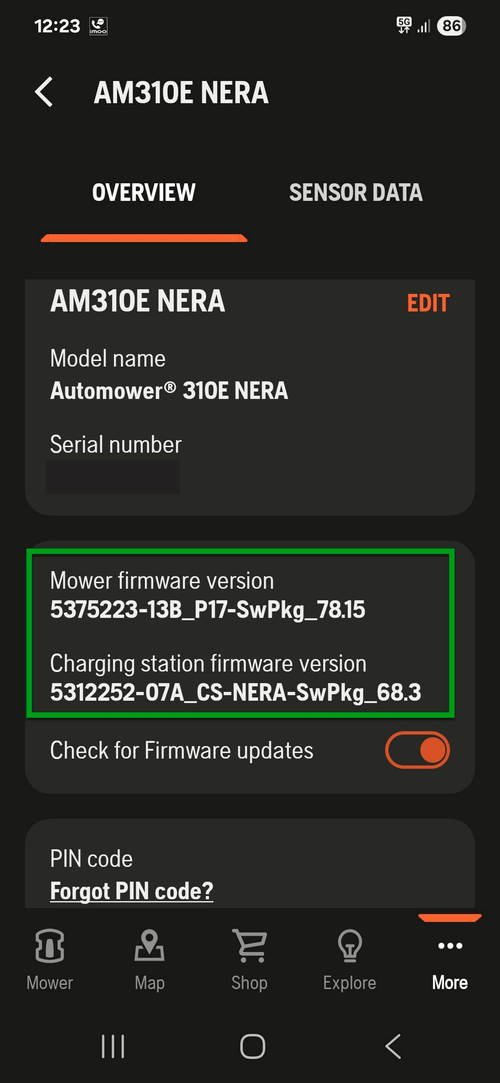
- Automower Connect: Open the mower information or settings page and check the software version.
- Mower display: If your model shows software information, compare it with the version listed in the app.
- Normal operation: Confirm that the mower charges and follows its normal schedule.
A successful update should not erase your boundary wire installation. Still, review important settings after any major software change. Check the schedule, mowing height, start points, weather settings, and accessories.
If the app still shows the old version, wait for the mower and app to synchronize. Then close and reopen the app. If the version remains unchanged, contact Husqvarna support with the mower model, product number, software version, and error message.

Common Mistakes to Avoid
Updating the app but not the mower
Installing a new Automower Connect version does not automatically mean the mower firmware changed. Check the mower’s own software status.
Using the wrong app
Use the official Automower Connect app for supported consumer Automower products. Other Husqvarna apps may control different equipment or services.
Moving the mower during the update
Keep the mower docked until the app confirms completion. Moving it can interrupt charging or communication.
Assuming every model updates over Wi-Fi
Some Automower models use Bluetooth, cellular service, or dealer equipment instead. The connection in your home does not determine the mower’s update method.
Resetting the mower too soon
A factory reset usually does not solve a simple connection problem. It may remove settings and require setup again. Try connection and power checks first.
Ignoring the mower’s condition
Firmware cannot repair a broken boundary wire, blocked blade, failed charging contact, weak battery, or damaged power supply. Fix the physical problem first when the mower reports one.
Firmware Update Decision Guide
Use this quick guide to choose the next step:
| Situation | Best next action |
|---|---|
| The app shows an update and the mower is charging | Start the update in Automower Connect |
| The app cannot see a Bluetooth mower | Move closer, restart Bluetooth, and reopen the app |
| A Wi-Fi mower is offline | Restore the mower’s Wi-Fi connection first |
| A cellular mower has no signal | Check network coverage and account status |
| The mower has no wireless update option | Check the manual or contact a Husqvarna dealer |
| The update fails once | Check power, charge, and connection, then retry |
| The update fails repeatedly | Stop retrying and contact Husqvarna support |
| The mower will not start after the update | Keep it docked and seek dealer service if it remains unresponsive |
Frequently Asked Questions
Can I update a Husqvarna Automower without Automower Connect?
Sometimes. Connected models commonly use Automower Connect for updates. Some models require a dealer, and some older models may not support consumer wireless updates. Check the manual for the exact model.
Does a firmware update delete my mowing schedule?
It normally should not. However, check the schedule and key settings after the update. A reset, service action, or change in mower setup can affect stored settings.
How long does an Automower firmware update take?
The time varies by model, connection, download size, and signal strength. Keep the mower in the charging station until the app confirms completion rather than relying on a fixed time.
Can the mower mow while firmware is updating?
No. Keep it parked and charging during the update. Normal mowing can resume after the app confirms that the update is complete.
Can I update firmware from the Automower display?
The display may show software information, but many models do not provide the full update process from the mower itself. Use Automower Connect or a Husqvarna dealer as directed for your model.
What information should I give Husqvarna support?
Provide the mower model, product number, software version, Automower Connect version, connection type, exact error message, and the steps you already tried. A photo of the error screen can also help.
Conclusion
The normal way to update a Husqvarna Automower in the United States is to place it in the charging station, open Automower Connect, and install the update shown for that mower. Keep power and communication active until the app confirms success.
If no update appears, the mower may already be current or may require a different connection method. If the update fails repeatedly or the mower becomes unresponsive, stop cycling the power and contact Husqvarna support or an authorized dealer with the model and error details.
As a final step, verify the software version, mowing schedule, charging status, and normal operation before returning the mower to its regular routine.


